

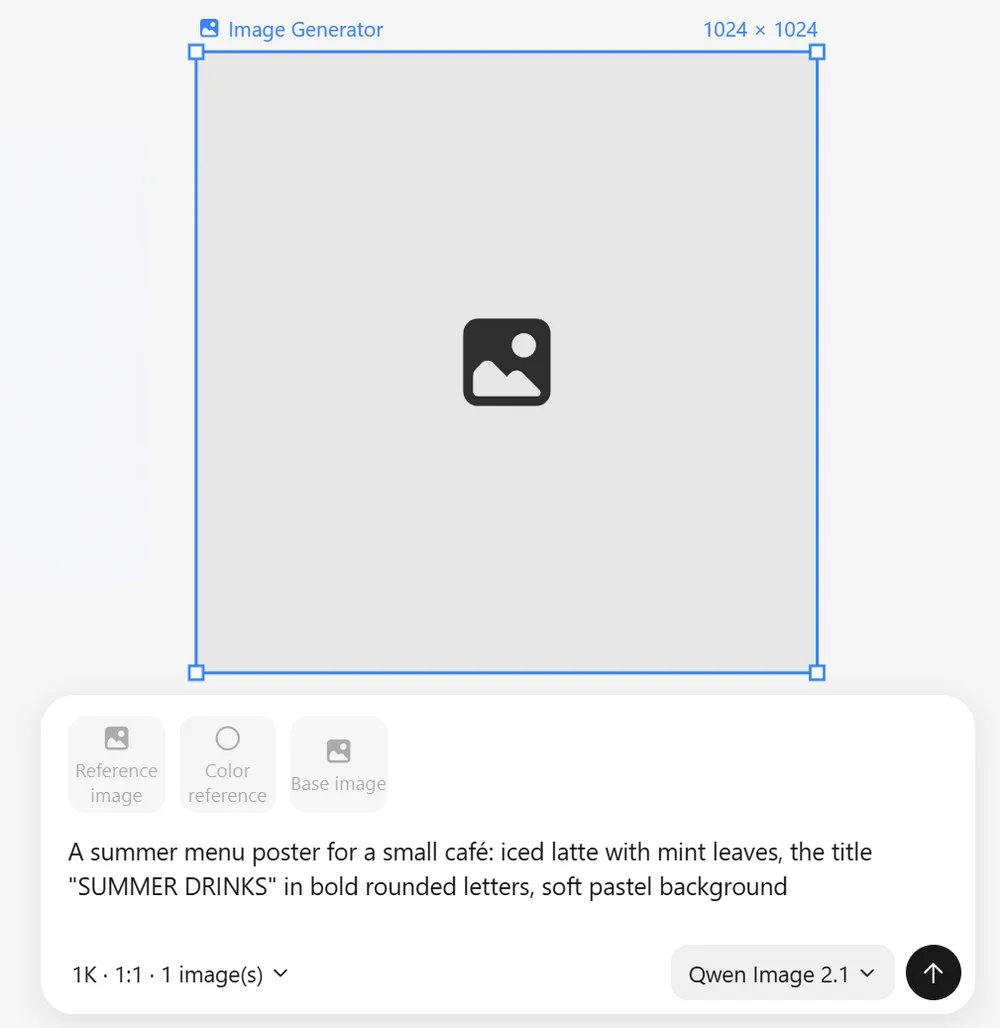
Image options
Put text that should appear in the image in quotes. Qwen Image 2.1 renders both Chinese and English text well.
Models
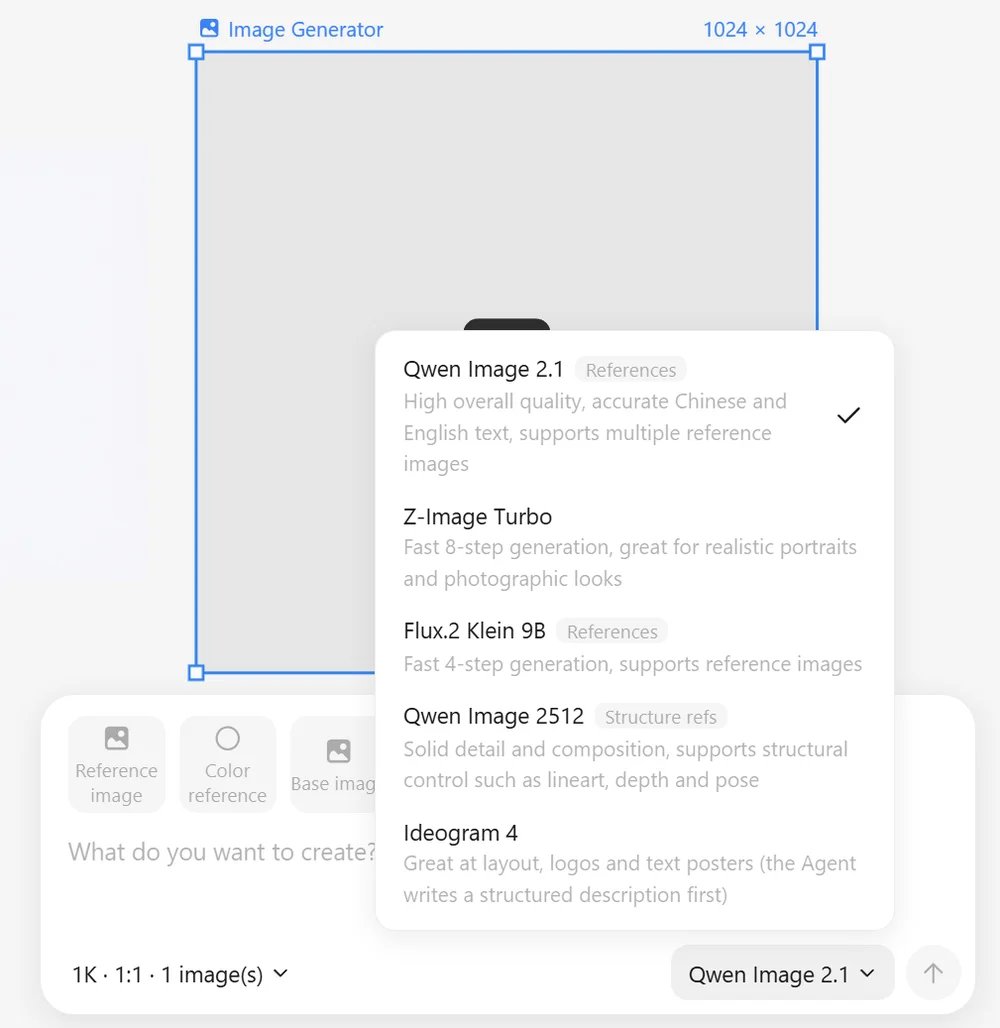
References
Click Reference image (or select images on the canvas) to attach up to four references. Each reference has a mode:- Content, style, composition: what the result should follow.
- Structure modes: line art, MLSD, scribble, soft edge, depth, normal, pose, segmentation, tile, recolor and more. ComfyArt runs the matching preprocessor first. On Qwen Image 2512 they drive a real ControlNet with a strength slider.
Color reference
Color reference adds a palette. The colors are named in the prompt, and on models that accept references a small color-swatch image is attached as well, so the result picks up the palette without copying any layout. Hover a color and click × to remove it.Base image
Base image turns generation into image-to-image: pick an image on the canvas and set how much the result may change (0–100).Video generation
Switch the generator to video for text-to-video or image-to-video with MiniMax H3:- Ratios 16:9, 9:16, 1:1, 4:3, 3:4, 21:9 and a duration of 5 or 10 seconds.
- A first frame and an optional last frame.
- Camera motion presets.
- Storyboard: split one idea into up to 6 scenes (30 seconds in total) and generate them as a sequence. Smart storyboard lets the Agent write the scenes.