> ## Documentation Index
> Fetch the complete documentation index at: https://comfyart.org/llms.txt
> Use this file to discover all available pages before exploring further.
# LAN instances
> Run ComfyArt jobs on other ComfyUI machines on your network, by hand or with Auto.
Other ComfyUI machines on your network can run ComfyArt jobs. Results still come back to this computer, so the canvas, history and Agent see them like local results.
## Add a machine
1. Start ComfyUI on the other machine with `--listen` so it accepts connections from the network, for example `python main.py --listen 0.0.0.0 --port 8188`.
2. Open the settings menu and click **LAN instances…**.
3. Fill in a name (optional), the address and the port, then click **Add**.
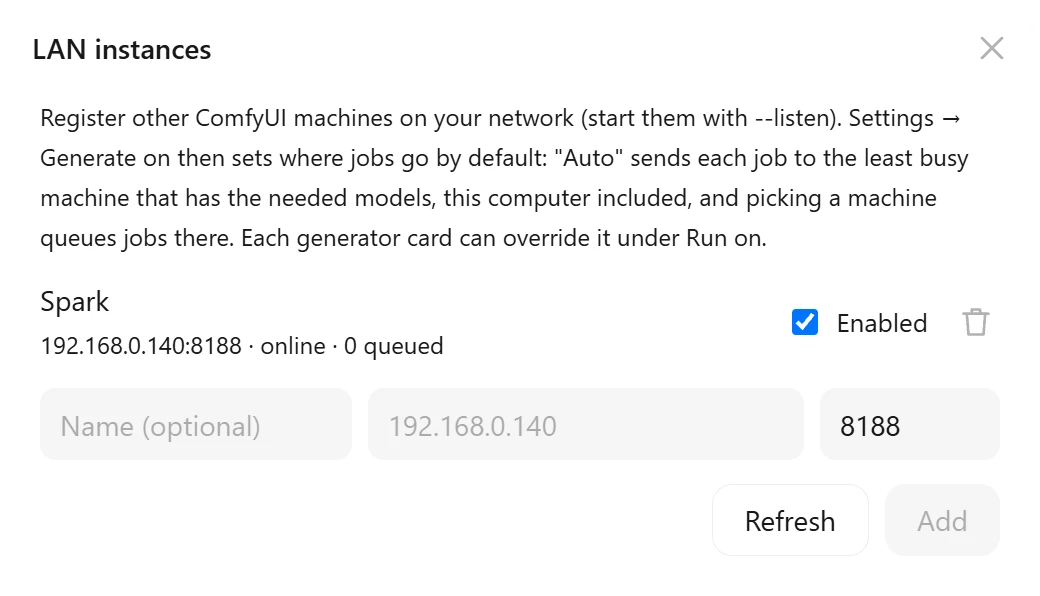 Each machine shows whether it is online and how many jobs are in its queue. Untick **Enabled** to stop sending jobs to it without removing it. Only the name, address and port are stored; ComfyArt never asks for or keeps a password or key.
## Choose where jobs run
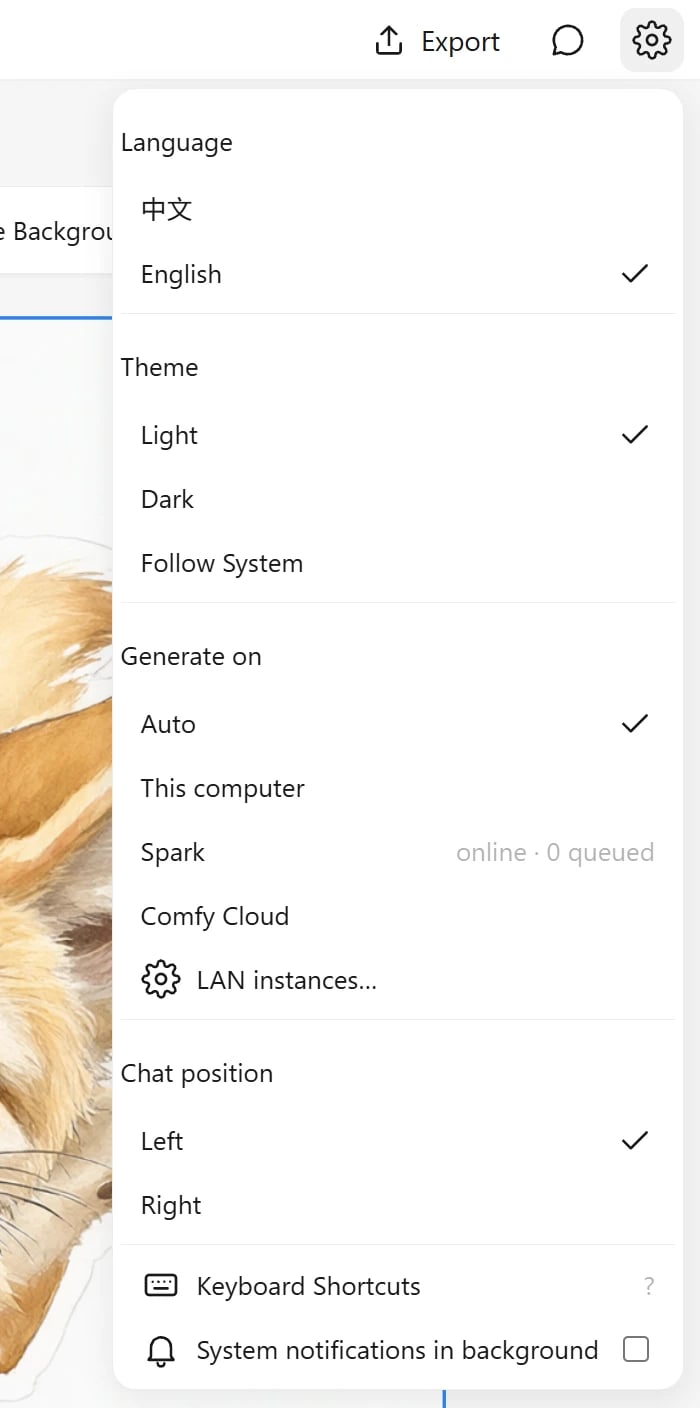
**Generate on** in the settings menu sets the default for every job:
Each machine shows whether it is online and how many jobs are in its queue. Untick **Enabled** to stop sending jobs to it without removing it. Only the name, address and port are stored; ComfyArt never asks for or keeps a password or key.
## Choose where jobs run
**Generate on** in the settings menu sets the default for every job:
 | Option | Where jobs go |
| - | - |
| Auto | the least busy machine, this computer included, that has every node and model file the workflow needs |
| This computer | always this computer |
| A machine by name | always that machine's queue, however busy it is |
| Comfy Cloud | Comfy Cloud, with a `COMFY_API_KEY` set before ComfyUI starts |
Each generator card can override the default under **Run on**, next to the model. **Default** follows the settings menu; any other choice applies to that card only and is kept when you regenerate or remix its results.
| Option | Where jobs go |
| - | - |
| Auto | the least busy machine, this computer included, that has every node and model file the workflow needs |
| This computer | always this computer |
| A machine by name | always that machine's queue, however busy it is |
| Comfy Cloud | Comfy Cloud, with a `COMFY_API_KEY` set before ComfyUI starts |
Each generator card can override the default under **Run on**, next to the model. **Default** follows the settings menu; any other choice applies to that card only and is kept when you regenerate or remix its results.
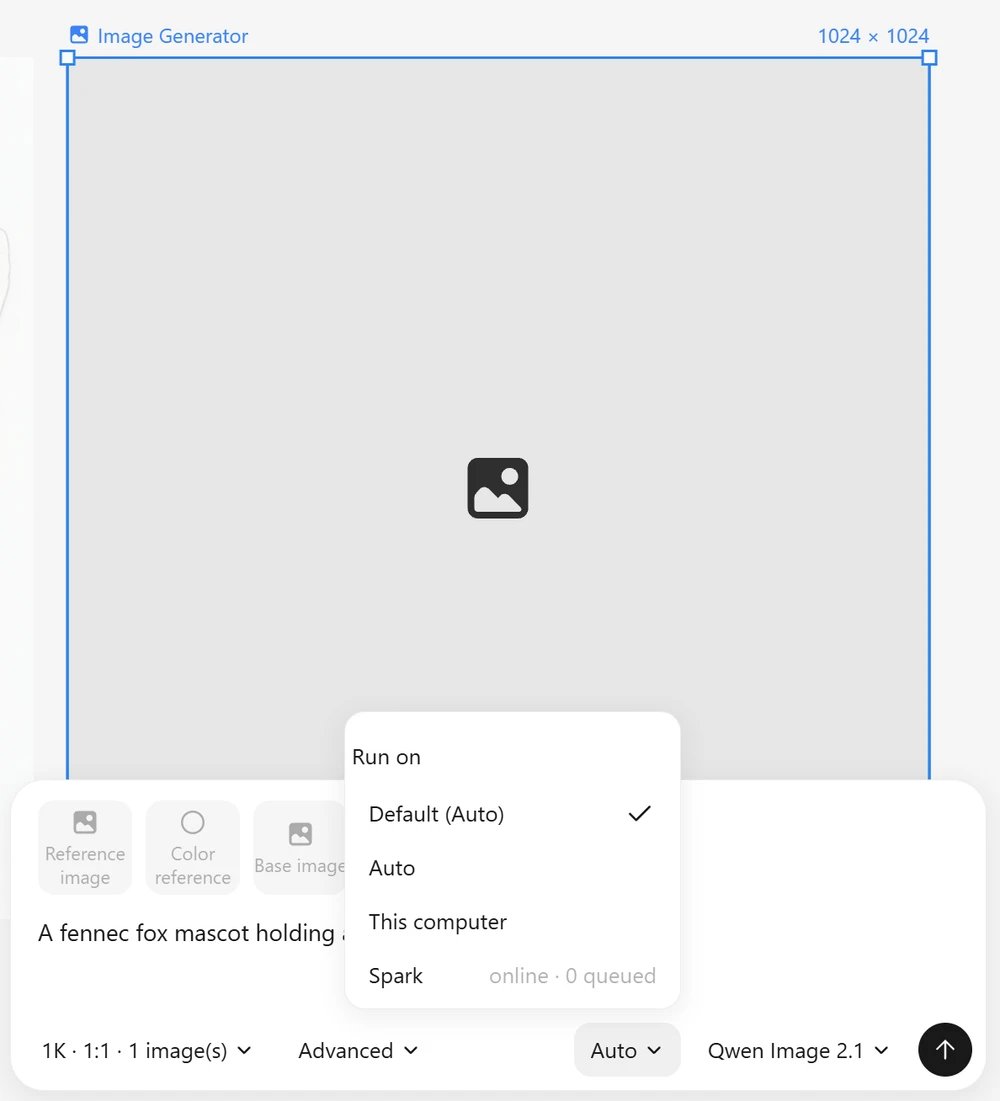 Tools such as upscale, remove background or the eraser use the default from the settings menu. While a job runs, the card shows which machine took it.
## How Auto picks a machine
For every job, Auto asks each enabled machine for its queue and checks that it has every node in the workflow and every model file the workflow names. Machines that are off, unreachable or missing something are skipped. Among the rest it picks the shortest queue; on a tie it picks this computer. If no machine can run the workflow, the job goes to this computer and fails there with ComfyUI's own error.
A batch of several images in one card (**Count** 2–4) is one job and runs on one machine. To spread work across machines, start several cards.
## Files and models
* Input images, video and audio are uploaded to the machine's `input/comfyart/` before the job is queued.
* Results are downloaded into this computer's `output/comfyart/`, with the machine name and job id added to the file name, for example `image_00001_Spark-28138bd7.png`.
* Model files are matched by file name, so they may sit in different subfolders on each machine.
* **Qwen Image 2512** loads with the ComfyArt Precise UNET Loader, so it only runs on machines that have ComfyArt installed. Auto skips the others; picking such a machine by hand gives a "node not found" error.
This documentation is built and hosted on [Mintlify](https://mintlify.com), a developer documentation platform.
Tools such as upscale, remove background or the eraser use the default from the settings menu. While a job runs, the card shows which machine took it.
## How Auto picks a machine
For every job, Auto asks each enabled machine for its queue and checks that it has every node in the workflow and every model file the workflow names. Machines that are off, unreachable or missing something are skipped. Among the rest it picks the shortest queue; on a tie it picks this computer. If no machine can run the workflow, the job goes to this computer and fails there with ComfyUI's own error.
A batch of several images in one card (**Count** 2–4) is one job and runs on one machine. To spread work across machines, start several cards.
## Files and models
* Input images, video and audio are uploaded to the machine's `input/comfyart/` before the job is queued.
* Results are downloaded into this computer's `output/comfyart/`, with the machine name and job id added to the file name, for example `image_00001_Spark-28138bd7.png`.
* Model files are matched by file name, so they may sit in different subfolders on each machine.
* **Qwen Image 2512** loads with the ComfyArt Precise UNET Loader, so it only runs on machines that have ComfyArt installed. Auto skips the others; picking such a machine by hand gives a "node not found" error.
This documentation is built and hosted on [Mintlify](https://mintlify.com), a developer documentation platform.