> ## Documentation Index
> Fetch the complete documentation index at: https://comfyart.org/llms.txt
> Use this file to discover all available pages before exploring further.
# Image tools
> Everything in the image toolbar: edit, upscale, split layers, remove background, erase, edit text, multi-angle and more.
Select an image to open its toolbar. The most used tools sit on the bar; the rest are under **⋯**. Use **Customize Toolbar** at the bottom of that menu to choose which tools are pinned and whether their names are shown.
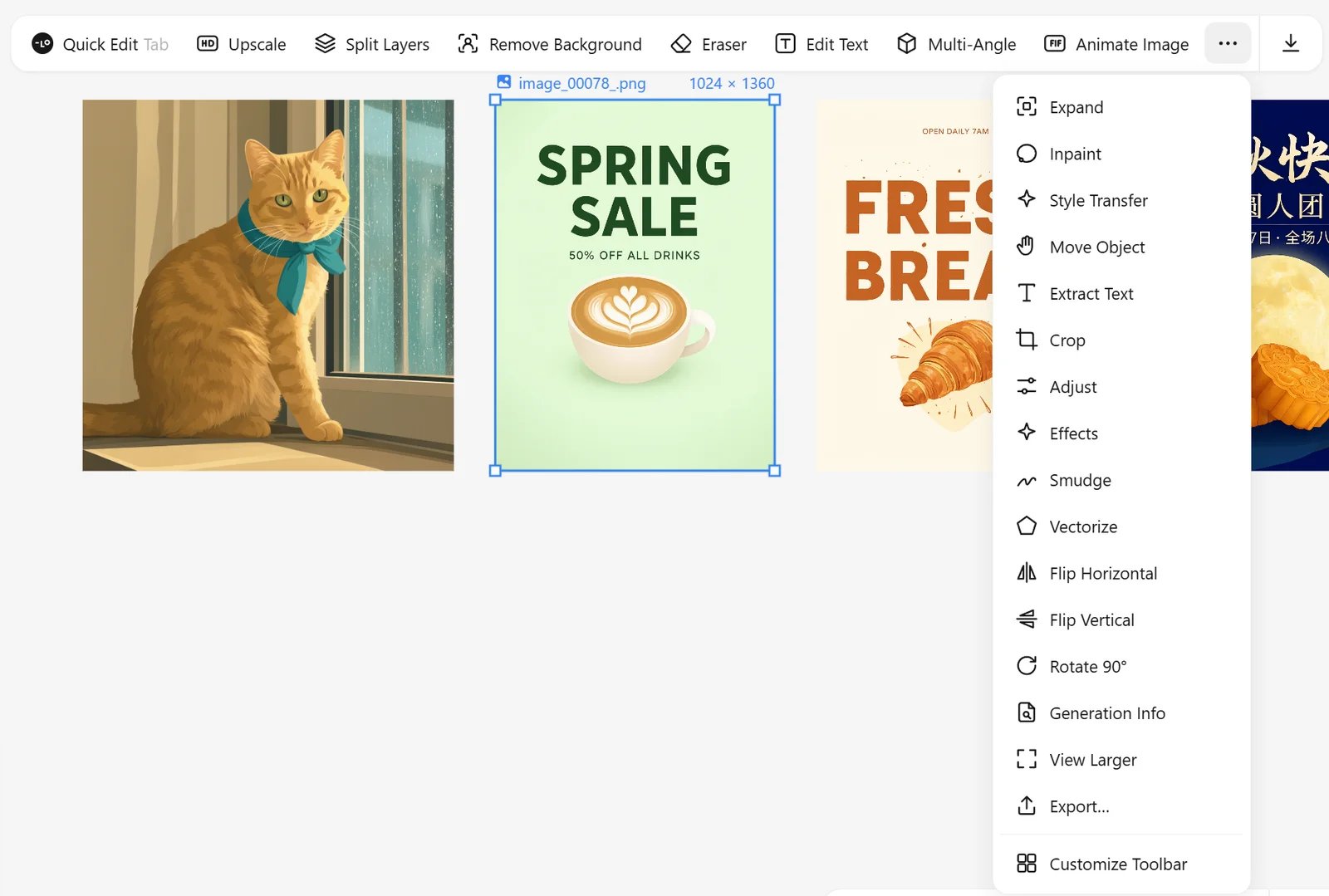 Tools that run a model place their result next to the original with a progress ring; the original is never overwritten. **Restore original** brings back an image's first version.
## Edit
| Tool | What it does |
| - | - |
| **Quick Edit** (Tab) | Describe a change in words. |
| **Edit Text** | Reads the text in the image and lists each line in an editable box; change any line and the image is redrawn with the same font, color and position. If no text is found, type the old and new text yourself. |
| **Inpaint** | Select an area with brush, eraser, lasso, box or smart select (SAM3), invert or feather it, then describe what goes there. Optional styles: realistic, portrait photo, anime, illustration, 3D, game CG or keep original. |
| **Style Transfer** | Restyle with a preset or a reference image. |
| **Move Object** | Select an object, drag it to a new spot; the old spot is filled in. |
| **Multi-Angle** | Re-render the subject from another camera angle: presets (front, left, right, back, top, low angle, close-up, medium, wide) or sliders, or four angles at once. |
| **Expand** | Outpaint to a preset ratio (original, square, landscape, portrait, post, story, cover photo, profile photo, thumbnail) or by scale, with an optional prompt. |
## Clean up
| Tool | What it does |
| - | - |
| **Remove Background** | Cut out the subject with BiRefNet. |
| **Eraser** | Paint over something and LaMa fills it in. |
| **Smudge** | Push pixels around with a brush. |
| **Crop**, **Flip**, **Rotate 90°** | Instant, in the browser. |
| **Adjust** | Light, color, detail and effects: exposure, contrast, highlights, shadows, whites, blacks, saturation, vibrance, temperature, tint, clarity, sharpen, grain, vignette, bloom, glamour, with auto and before / after compare. |
| **Effects** | Opacity, shadow and blur. |
The brush tools (Eraser, Inpaint, Smudge) show the brush size as a circle under the pointer.
## Upscale
Upscale 2× or 4×. **Faithful to original** uses 4x-UltraSharp; **Enhance details** redraws at the larger size with a style preset and a detail strength, adding new detail.
## Split layers
**Split Layers** separates an image into editable layers inside a frame, with a background layer underneath:
* **Auto Split** runs Qwen Image Layered and keeps the useful layers.
* **Custom Split** lets you draw up to six boxes; SAM3 cuts out the object in each box.
* **Separate Regions** works on any layer, including one that a split left with two things mixed together: draw one box around the part to pull out, adjust its edges, and that part becomes its own layer, cropped to its visible pixels. It is instant and runs no model.
After a split, the background is the original image with every split layer erased and filled in, so moving or hiding a layer reveals clean background instead of a duplicate.
## Text, vectors and info
* **Extract Text** copies the text in an image (OCR with the local model or the Agent).
* **Vectorize** traces the image into an SVG. The canvas shows it as a bitmap rendered for the current zoom so it stays fast; downloads and exports keep the full SVG.
* **Generation Info** shows the prompt, model and settings; **Copy Prompt**, **Remix** (same prompt, new seed) and **Regenerate** are next to it.
* **View Larger** opens the preview lightbox; **Export** saves PNG, JPG or PDF.
This documentation is built and hosted on [Mintlify](https://mintlify.com), a developer documentation platform.
Tools that run a model place their result next to the original with a progress ring; the original is never overwritten. **Restore original** brings back an image's first version.
## Edit
| Tool | What it does |
| - | - |
| **Quick Edit** (Tab) | Describe a change in words. |
| **Edit Text** | Reads the text in the image and lists each line in an editable box; change any line and the image is redrawn with the same font, color and position. If no text is found, type the old and new text yourself. |
| **Inpaint** | Select an area with brush, eraser, lasso, box or smart select (SAM3), invert or feather it, then describe what goes there. Optional styles: realistic, portrait photo, anime, illustration, 3D, game CG or keep original. |
| **Style Transfer** | Restyle with a preset or a reference image. |
| **Move Object** | Select an object, drag it to a new spot; the old spot is filled in. |
| **Multi-Angle** | Re-render the subject from another camera angle: presets (front, left, right, back, top, low angle, close-up, medium, wide) or sliders, or four angles at once. |
| **Expand** | Outpaint to a preset ratio (original, square, landscape, portrait, post, story, cover photo, profile photo, thumbnail) or by scale, with an optional prompt. |
## Clean up
| Tool | What it does |
| - | - |
| **Remove Background** | Cut out the subject with BiRefNet. |
| **Eraser** | Paint over something and LaMa fills it in. |
| **Smudge** | Push pixels around with a brush. |
| **Crop**, **Flip**, **Rotate 90°** | Instant, in the browser. |
| **Adjust** | Light, color, detail and effects: exposure, contrast, highlights, shadows, whites, blacks, saturation, vibrance, temperature, tint, clarity, sharpen, grain, vignette, bloom, glamour, with auto and before / after compare. |
| **Effects** | Opacity, shadow and blur. |
The brush tools (Eraser, Inpaint, Smudge) show the brush size as a circle under the pointer.
## Upscale
Upscale 2× or 4×. **Faithful to original** uses 4x-UltraSharp; **Enhance details** redraws at the larger size with a style preset and a detail strength, adding new detail.
## Split layers
**Split Layers** separates an image into editable layers inside a frame, with a background layer underneath:
* **Auto Split** runs Qwen Image Layered and keeps the useful layers.
* **Custom Split** lets you draw up to six boxes; SAM3 cuts out the object in each box.
* **Separate Regions** works on any layer, including one that a split left with two things mixed together: draw one box around the part to pull out, adjust its edges, and that part becomes its own layer, cropped to its visible pixels. It is instant and runs no model.
After a split, the background is the original image with every split layer erased and filled in, so moving or hiding a layer reveals clean background instead of a duplicate.
## Text, vectors and info
* **Extract Text** copies the text in an image (OCR with the local model or the Agent).
* **Vectorize** traces the image into an SVG. The canvas shows it as a bitmap rendered for the current zoom so it stays fast; downloads and exports keep the full SVG.
* **Generation Info** shows the prompt, model and settings; **Copy Prompt**, **Remix** (same prompt, new seed) and **Regenerate** are next to it.
* **View Larger** opens the preview lightbox; **Export** saves PNG, JPG or PDF.
This documentation is built and hosted on [Mintlify](https://mintlify.com), a developer documentation platform.