> ## Documentation Index
> Fetch the complete documentation index at: https://comfyart.org/llms.txt
> Use this file to discover all available pages before exploring further.
# Text, shapes and paths
> Rich text, fonts, gradient and image fills, the pen tool, node editing and boolean operations.
Text and shapes stay editable vectors on the canvas, and PPTX export with editable objects keeps them as text and shapes.
## Rich text
Double-click a text to edit it. With nothing selected inside, the text toolbar changes the whole text; select a few words and the color, font, weight, size, **B**, *I* and U buttons apply only to that selection, so one text can mix styles.
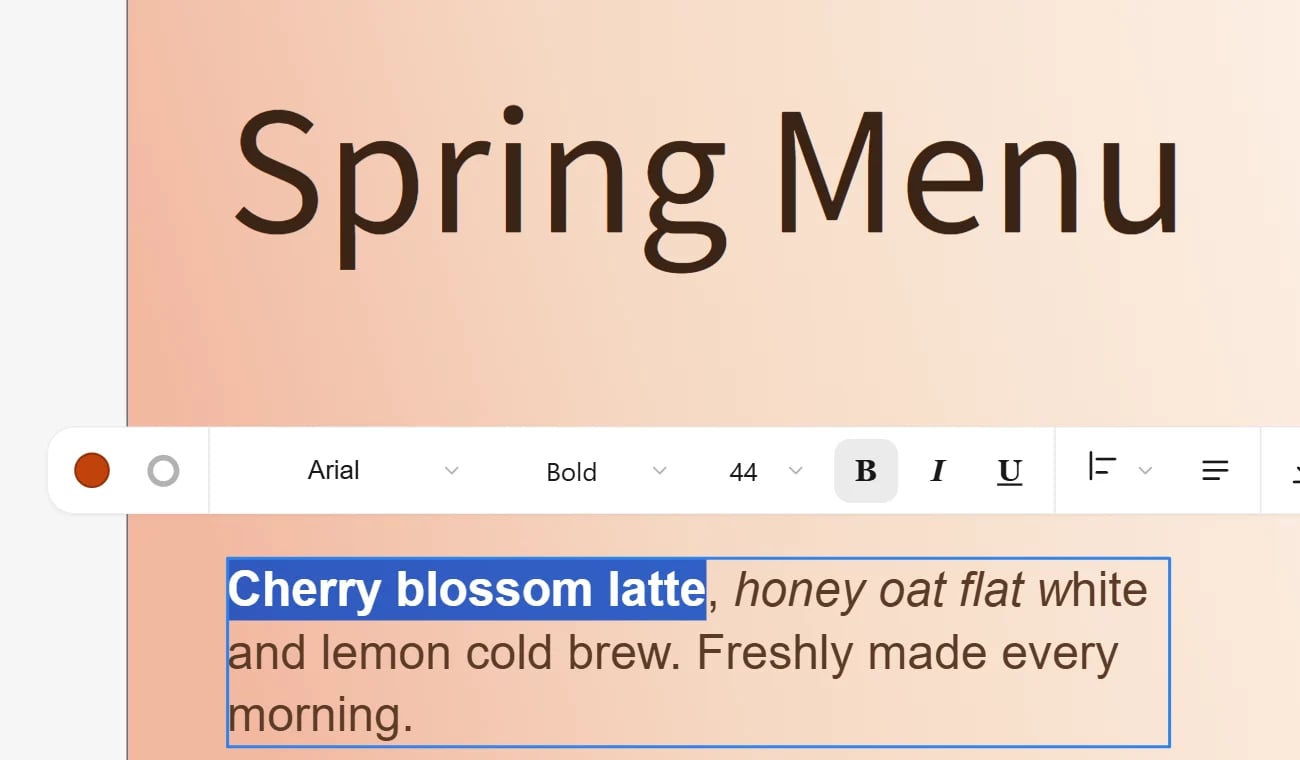 The toolbar also has alignment, line and letter spacing, stroke, case and decoration. Mixed styles are kept in PPTX export as separate text runs.
## Fonts
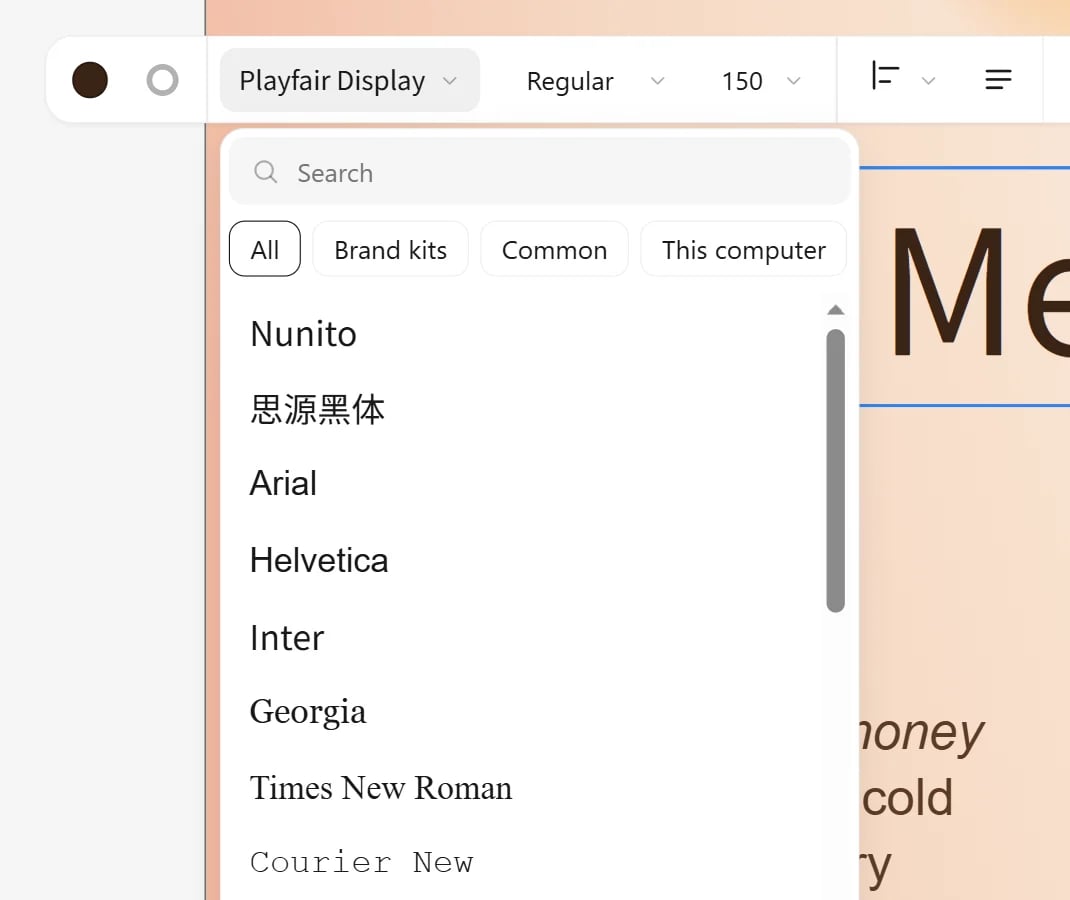
The font menu searches every font you can use, grouped as **Brand kits** (fonts uploaded to your brand kits), **Common** and **This computer** (local fonts, after the browser asks for permission). Each name is shown in its own typeface.
The toolbar also has alignment, line and letter spacing, stroke, case and decoration. Mixed styles are kept in PPTX export as separate text runs.
## Fonts
The font menu searches every font you can use, grouped as **Brand kits** (fonts uploaded to your brand kits), **Common** and **This computer** (local fonts, after the browser asks for permission). Each name is shown in its own typeface.
 ## Shapes and fills
**Insert** adds rectangles, ellipses, polygons, stars, lines and arrows. Select a shape and open **Fill** in its toolbar:
## Shapes and fills
**Insert** adds rectangles, ellipses, polygons, stars, lines and arrows. Select a shape and open **Fill** in its toolbar:
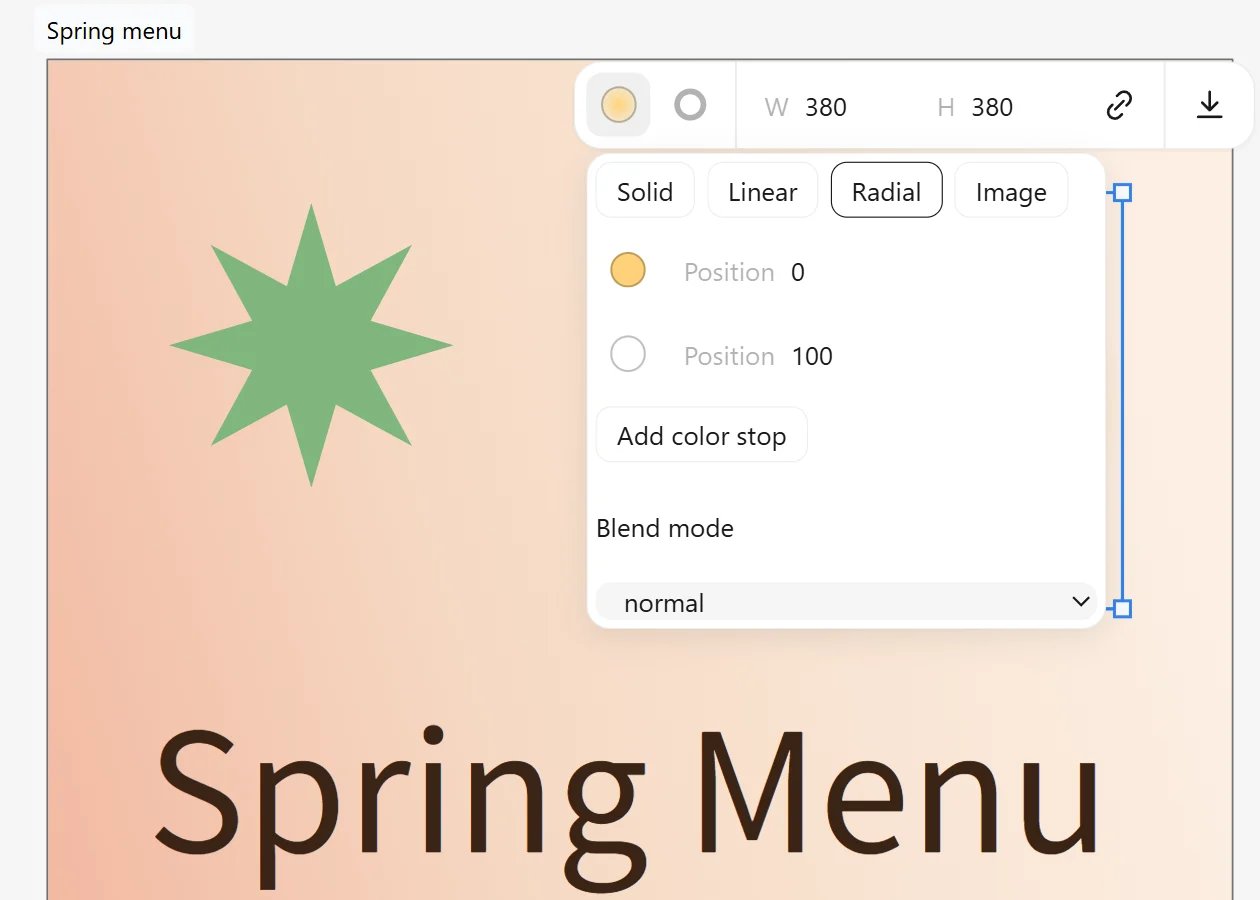 * **Solid**, **Linear**, **Radial** or **Image** fill.
* Gradients take any number of color stops. Each stop has a position and a color with transparency, so a gradient can fade out (like the soft sun above). Linear gradients have an angle.
* **Blend mode** (multiply, screen, overlay and the other CSS blend modes) mixes the shape with what is under it.
Strokes can sit inside, centered or outside, solid, dashed or dotted. Rectangles have a corner radius.
## Pen and node editing
Press **P** (or pick the pen from **Insert**) to draw a path: click to add corner points, drag to pull out curve handles, click the first point to close the shape, or double-click, press Enter or Esc to finish an open path.
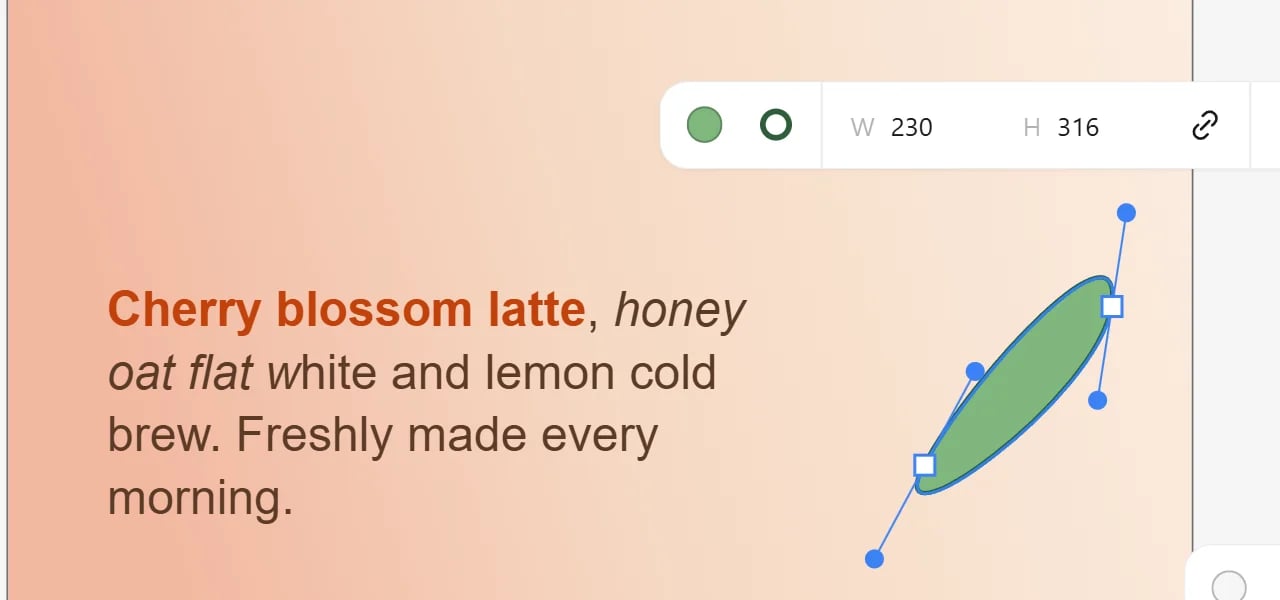
Double-click a path to edit its nodes. Drag a point to move it and drag a handle to bend the curve. Results of boolean operations are paths too.
* **Solid**, **Linear**, **Radial** or **Image** fill.
* Gradients take any number of color stops. Each stop has a position and a color with transparency, so a gradient can fade out (like the soft sun above). Linear gradients have an angle.
* **Blend mode** (multiply, screen, overlay and the other CSS blend modes) mixes the shape with what is under it.
Strokes can sit inside, centered or outside, solid, dashed or dotted. Rectangles have a corner radius.
## Pen and node editing
Press **P** (or pick the pen from **Insert**) to draw a path: click to add corner points, drag to pull out curve handles, click the first point to close the shape, or double-click, press Enter or Esc to finish an open path.
Double-click a path to edit its nodes. Drag a point to move it and drag a handle to bend the curve. Results of boolean operations are paths too.
 ## Boolean operations
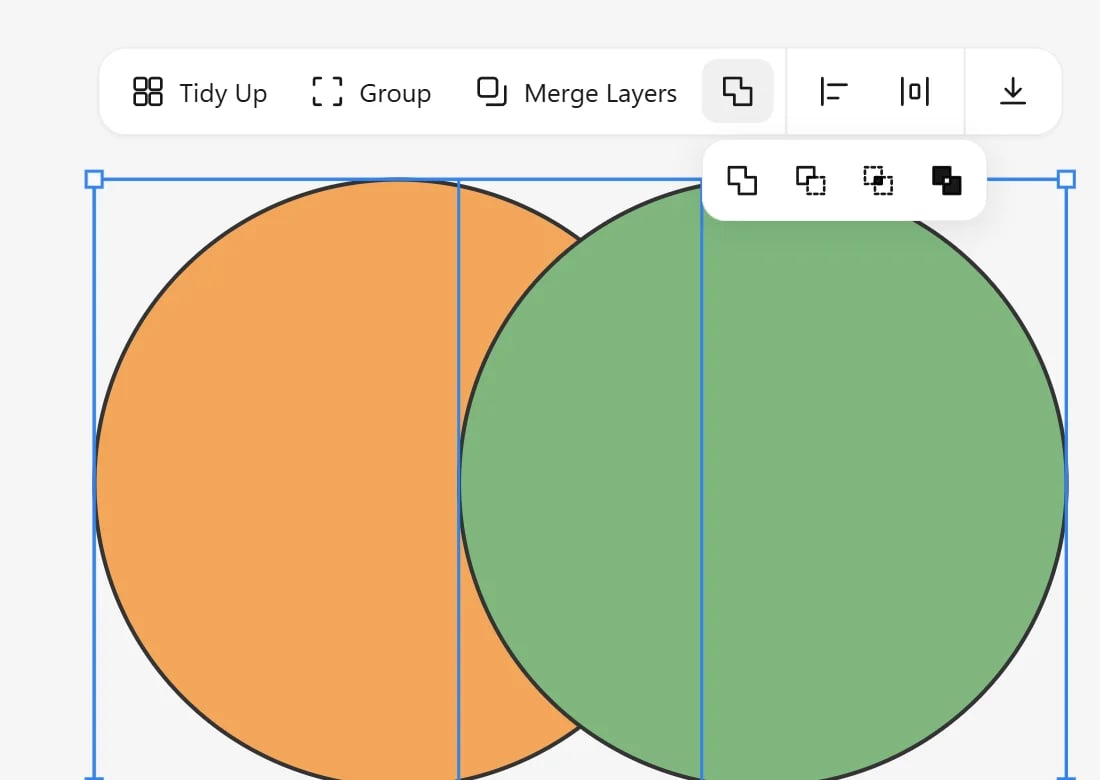
Select two or more shapes and open **Boolean** in the selection toolbar: **Union**, **Subtract**, **Intersect** or **Exclude**. The result is a single new path with the style of the bottom shape; **Subtract** cuts the shapes above out of the bottom one.
## Boolean operations
Select two or more shapes and open **Boolean** in the selection toolbar: **Union**, **Subtract**, **Intersect** or **Exclude**. The result is a single new path with the style of the bottom shape; **Subtract** cuts the shapes above out of the bottom one.
 This documentation is built and hosted on [Mintlify](https://mintlify.com), a developer documentation platform.