> ## Documentation Index
> Fetch the complete documentation index at: https://comfyart.org/llms.txt
> Use this file to discover all available pages before exploring further.
# Agent
> A design agent that looks at your canvas and works on it with real tools.
The Agent panel on the left runs a tool-using agent on the ComfyUI backend. It can look at the canvas, plan a design, generate and edit images and videos, place text, shapes, frames, web pages and slides, ask you clarifying questions, and remember your preferences.
## Modes
The mode switch under the chat box picks what a message does:
* **Agent**: the agent plans and works on the canvas with tools. Needs an agent to be enabled (below).
* **Image** and **Video**: send the prompt straight to a generator, no agent involved. These work out of the box.
Select images on the canvas to attach them as references. Type `/` to pick a skill and `@` to reference brand kits, characters, products or canvas items.
## Settings
The Agent is off by default. Open **Agent Settings** from the agent picker and turn on **Enable MCP** and **Enable Agent**.
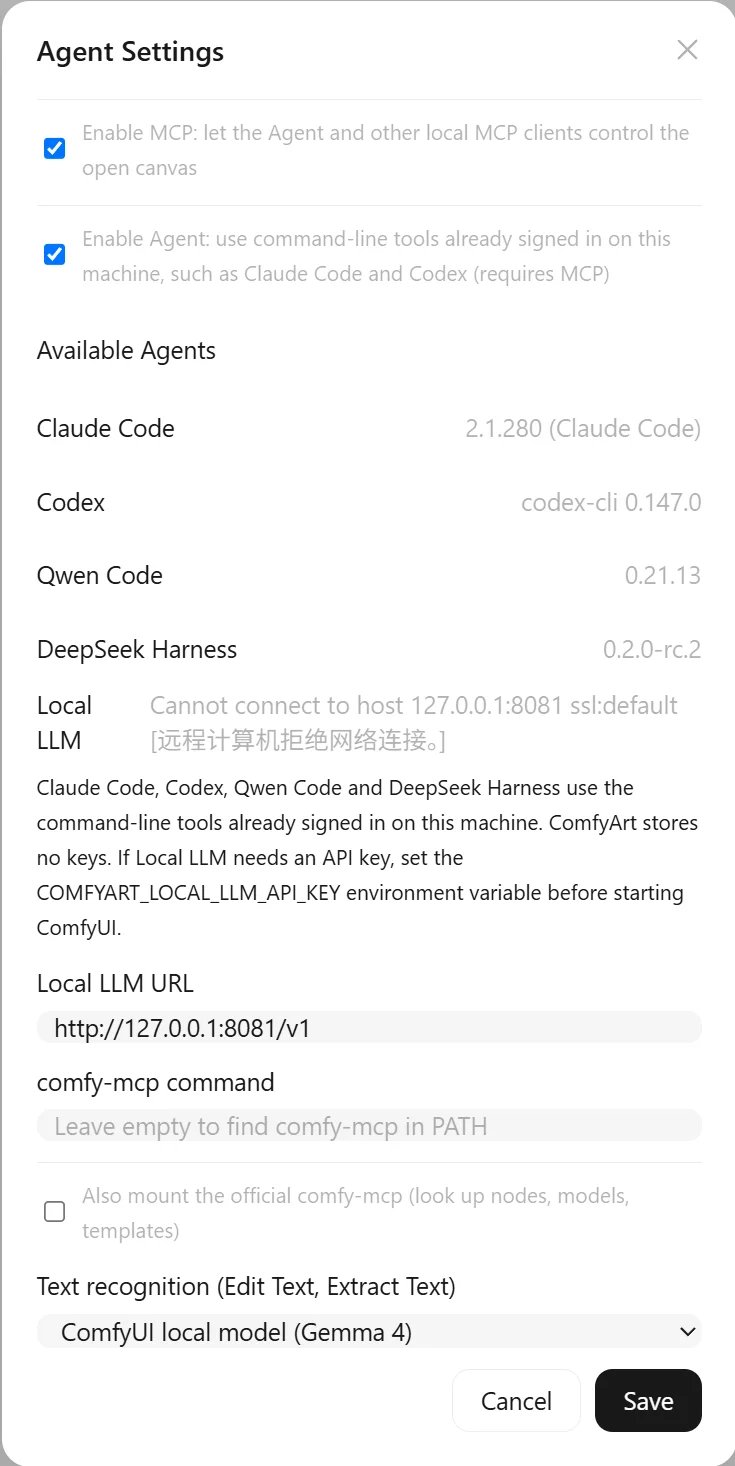 ComfyArt uses command-line agents that are already signed in on your machine. It never stores credentials.
| Agent | What it needs |
| - | - |
| Claude Code | `claude` on PATH, logged in |
| Codex | `codex` on PATH, logged in |
| Qwen Code | `qwen` on PATH with a model configured in `~/.qwen/settings.json` |
| DeepSeek Harness | `dsh` on PATH, signed in through the DeepSeek Harness app |
| Local LLM | any OpenAI-compatible endpoint with tool calling; set its URL in Agent Settings. If it needs a key, set `COMFYART_LOCAL_LLM_API_KEY` before starting ComfyUI. |
Other settings:
* **comfy-mcp**: optionally mount the official comfy-mcp server too, so the agent can look up nodes, models and templates.
* **Text recognition**: Edit Text and Extract Text read text with the local Gemma 4 model in ComfyUI by default, with a progress status while it loads and reads. Switch to **Agent** to use the default agent instead.
* **Model Preferences** (button under the chat box): let the agent choose models automatically or fix one per task, with separate Image and Video tabs.
Short single-shot tasks (storyboard split, OCR with the Agent engine, brand and memory extraction, reference notes and the Ideogram caption) go to the default agent without tools.
## Chats
* Chats are saved in a SQLite database (`user/__comfyart/data.db`) and keep running when the panel is closed. The canvas tools run in the open ComfyArt tab of the project, so keep that tab open while the agent works.
* Stop a run, edit and resend a message, branch a chat, see context usage, and open each result's details (process, outputs, original prompt).
* The agent can review the canvas frame by frame, summarize comments into a fix plan, and point you to results on the canvas.
* The notification center collects suggestions, comment fixes and finished tasks, and a browser notification fires when a task is done.
* **Voice input** transcribes with a local speech model.
## Skills
Skills are folders with a `SKILL.md` plus any extra files (images, text). Use the built-in ones, write your own, import a folder, or save a workflow from a chat as a skill. Skills keep version history with rollback. Image files are shown to the agent; text files are included by relevance within a context budget.
## Memory
The agent remembers things across projects: about you, your taste, your way of working and your assets. It can ask onboarding questions, extract memories from uploaded files, and you can change or forget memories just by asking. An evolution log shows what changed.
## Scheduled tasks
Run an agent prompt on a schedule (daily or weekly) while ComfyArt is open.
This documentation is built and hosted on [Mintlify](https://mintlify.com), a developer documentation platform.
ComfyArt uses command-line agents that are already signed in on your machine. It never stores credentials.
| Agent | What it needs |
| - | - |
| Claude Code | `claude` on PATH, logged in |
| Codex | `codex` on PATH, logged in |
| Qwen Code | `qwen` on PATH with a model configured in `~/.qwen/settings.json` |
| DeepSeek Harness | `dsh` on PATH, signed in through the DeepSeek Harness app |
| Local LLM | any OpenAI-compatible endpoint with tool calling; set its URL in Agent Settings. If it needs a key, set `COMFYART_LOCAL_LLM_API_KEY` before starting ComfyUI. |
Other settings:
* **comfy-mcp**: optionally mount the official comfy-mcp server too, so the agent can look up nodes, models and templates.
* **Text recognition**: Edit Text and Extract Text read text with the local Gemma 4 model in ComfyUI by default, with a progress status while it loads and reads. Switch to **Agent** to use the default agent instead.
* **Model Preferences** (button under the chat box): let the agent choose models automatically or fix one per task, with separate Image and Video tabs.
Short single-shot tasks (storyboard split, OCR with the Agent engine, brand and memory extraction, reference notes and the Ideogram caption) go to the default agent without tools.
## Chats
* Chats are saved in a SQLite database (`user/__comfyart/data.db`) and keep running when the panel is closed. The canvas tools run in the open ComfyArt tab of the project, so keep that tab open while the agent works.
* Stop a run, edit and resend a message, branch a chat, see context usage, and open each result's details (process, outputs, original prompt).
* The agent can review the canvas frame by frame, summarize comments into a fix plan, and point you to results on the canvas.
* The notification center collects suggestions, comment fixes and finished tasks, and a browser notification fires when a task is done.
* **Voice input** transcribes with a local speech model.
## Skills
Skills are folders with a `SKILL.md` plus any extra files (images, text). Use the built-in ones, write your own, import a folder, or save a workflow from a chat as a skill. Skills keep version history with rollback. Image files are shown to the agent; text files are included by relevance within a context budget.
## Memory
The agent remembers things across projects: about you, your taste, your way of working and your assets. It can ask onboarding questions, extract memories from uploaded files, and you can change or forget memories just by asking. An evolution log shows what changed.
## Scheduled tasks
Run an agent prompt on a schedule (daily or weekly) while ComfyArt is open.
This documentation is built and hosted on [Mintlify](https://mintlify.com), a developer documentation platform.